Getting Started
ZenDash HRM is the same Expo application on the web, iOS, and Android. Your organization provides the workspace and employee account used to sign in.
Choose your platform
- iPhone and iPad: Download ZenDash HRM from the Apple App Store.
- Android: Install ZenDash HRM from Google Play.
- Web: Open the ZenDash HRM URL supplied by your organization.
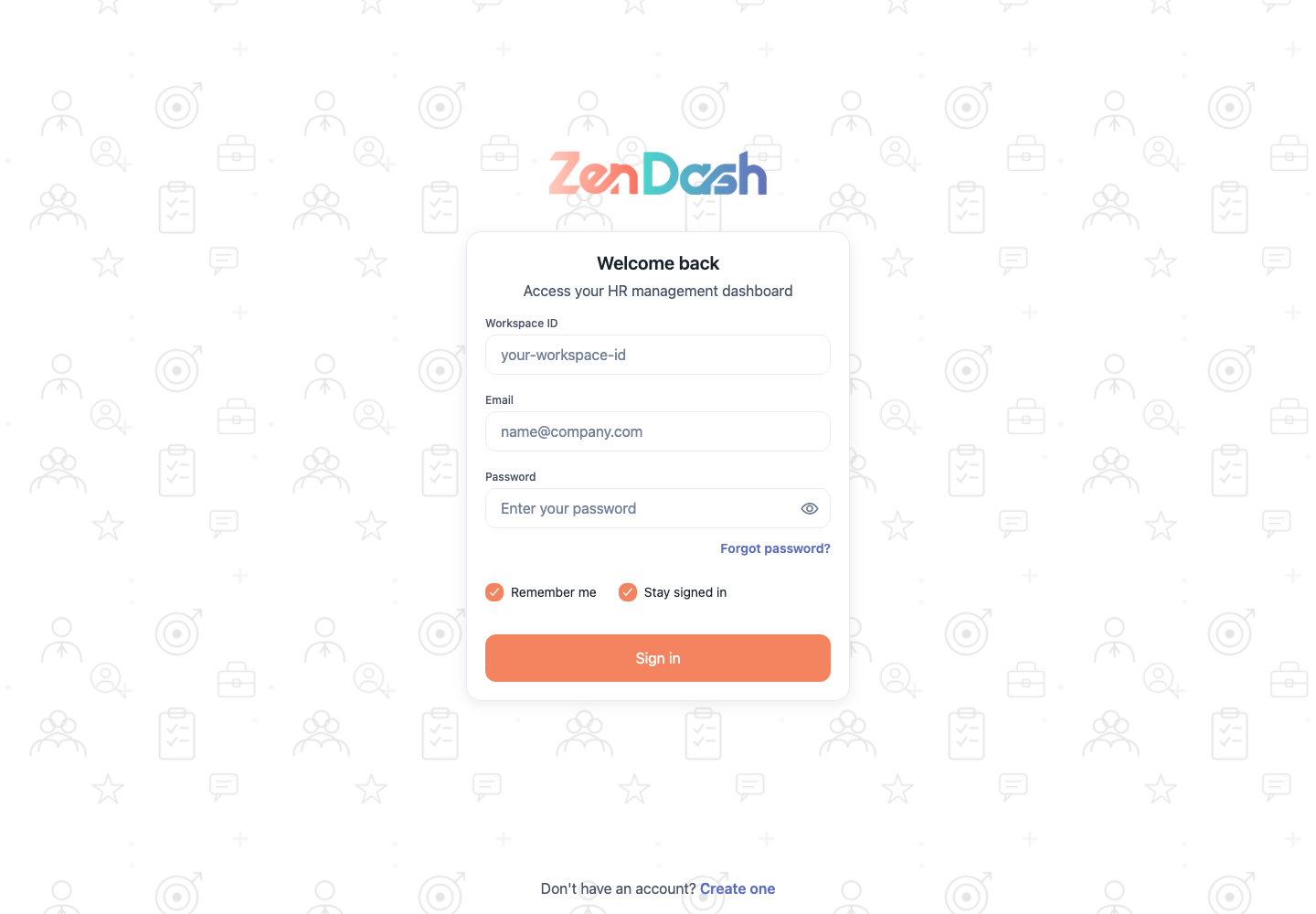
Sign in
- Open the ZenDash HRM URL or mobile app supplied by your organization.
- Enter your Workspace ID, Email, and Password.
- Optionally select Remember me or Stay signed in.
- Select Sign in.
A successful sign-in opens Dashboard. The features you can see are based on your permission group, so your navigation may contain fewer items than the examples in this guide.
If your organization is included in the web migration rollout and you open Zendash from its older HRM site, Zendash can prefill the Workspace ID from that site's address when you have not previously saved a workspace. After you sign in to that workspace, a banner identifies the new version. The banner remains hidden if you switch to another workspace. Select No, go back to return to the older site, or close the banner to remain in Zendash. Closing it hides the banner until you enter through the older site again.
Use Forgot password? on the sign-in screen to request a reset code for your workspace and email address. Enter that code with the new password to finish the reset.
On the web sign-in screen, Create one opens employee self-registration. Submitted registrations remain pending until an authorized administrator reviews them.
First steps
- Review the quick actions and widgets on Dashboard.
- Open the profile menu in the header and select Profile to check your details.
- On a small screen, open More to find the complete menu.
- Select Customize navigation to choose the middle shortcuts in the mobile bottom bar.
- Use the sun or moon control in the header to change the color theme.
Signing out
Open the profile menu in the header and select Sign out. On a small screen, the same account actions are available from More.
A missing menu item normally means your account does not have its required permission. Ask an HR administrator to review your permission group instead of navigating to the route directly.