Team Monitoring and Configuration
Team Monitoring
Open Device Monitoring > Team Monitoring. The header identifies today as live or shows the selected date range.
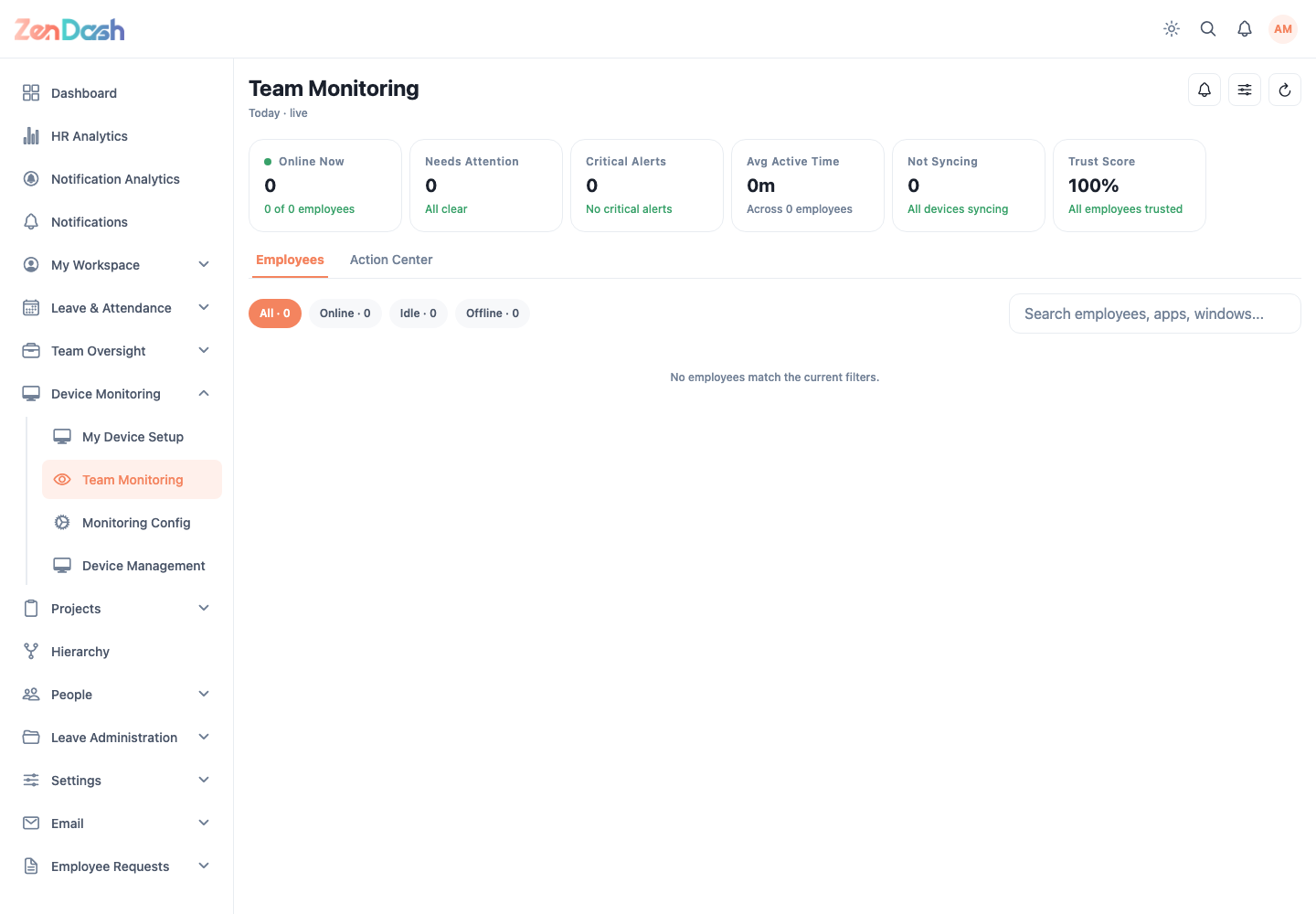
The KPI row includes Online Now, Needs Attention, Critical Alerts, Avg Active Time, Not Syncing, and Trust Score. Use Employees to filter All, Online, Idle, or Offline and search employees, apps, or windows. Sort the insights by Activity, Status, or Top apps.
Select an employee to open detailed app usage, websites visited, and active-versus-idle information. Under Activity, use Timeline to review the selected day's recorded events by hour and Screenshots to review its captures. On days with more than 60 screenshots, select Show more to load the next group of captures. Use Action Center to review monitoring items that need attention.
Monitoring Config
Open Device Monitoring > Monitoring Config. Global sections cover Screenshot Settings, Monitoring Settings, Security & Spot-Checks, and Data Retention.
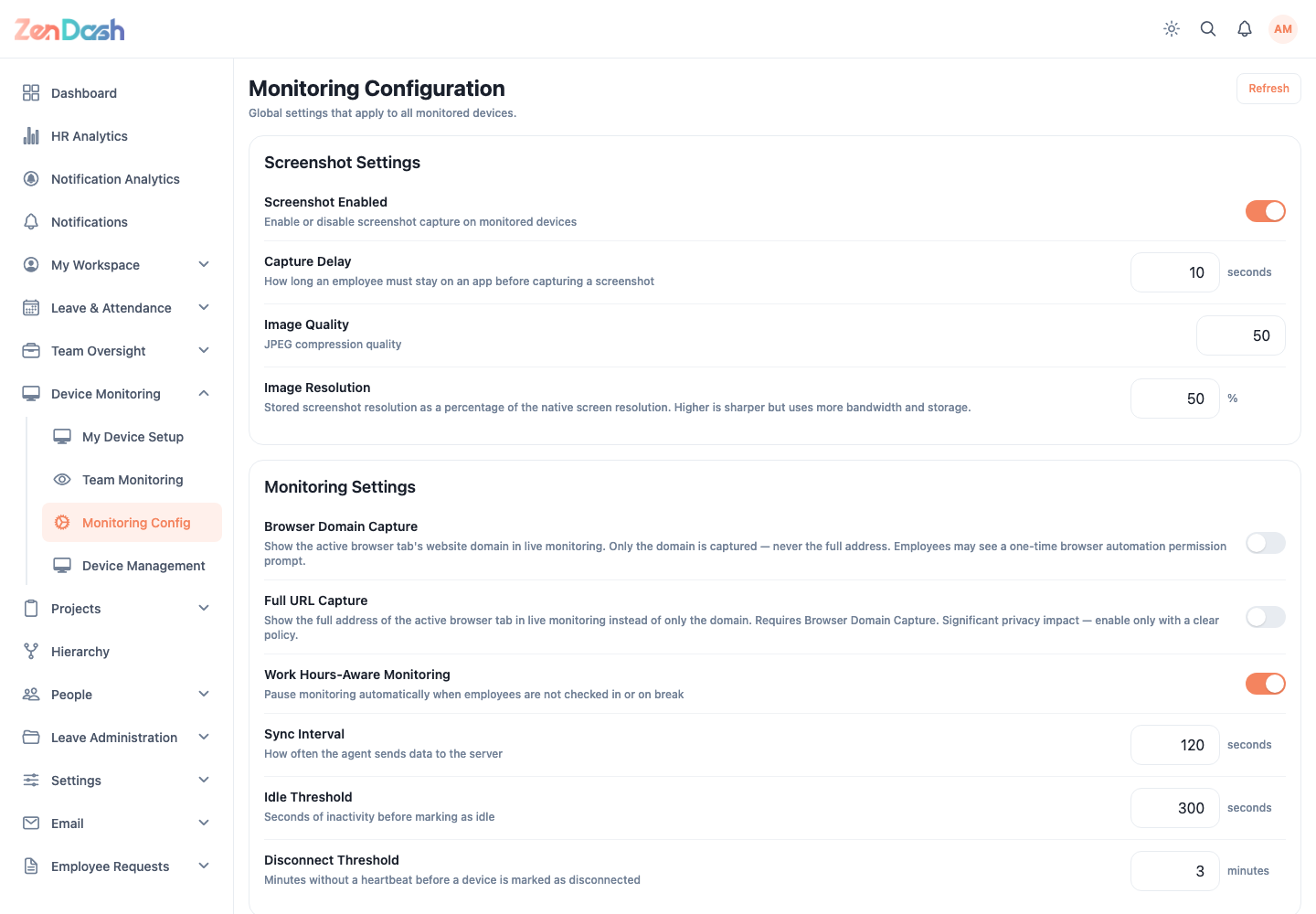
Change values, then select Save Changes. The app notes that saved changes take effect on the next device sync. Reset to Defaults requires confirmation.
Browser URL capture, screenshots, retention, and spot checks have privacy and policy implications. Enable them only under an approved monitoring policy and applicable law.